How the Print Label Button Works in Product in Odoo 18 (Enterprise)
Introduction :
In Odoo 18 Enterprise, the Print Label button allows users to quickly generate and print product labels directly from the product form. These labels are commonly used for barcodes, SKU identification, pricing, making inventory handling faster and more accurate.
What Is the Print Label Button?
The Print Label button is a built-in feature in Odoo that:
* Prints product labels in PDF format
* Supports different label sizes and layouts
Where to Find the Print Label Button
* Go to sales → Products → Products
* Open a product
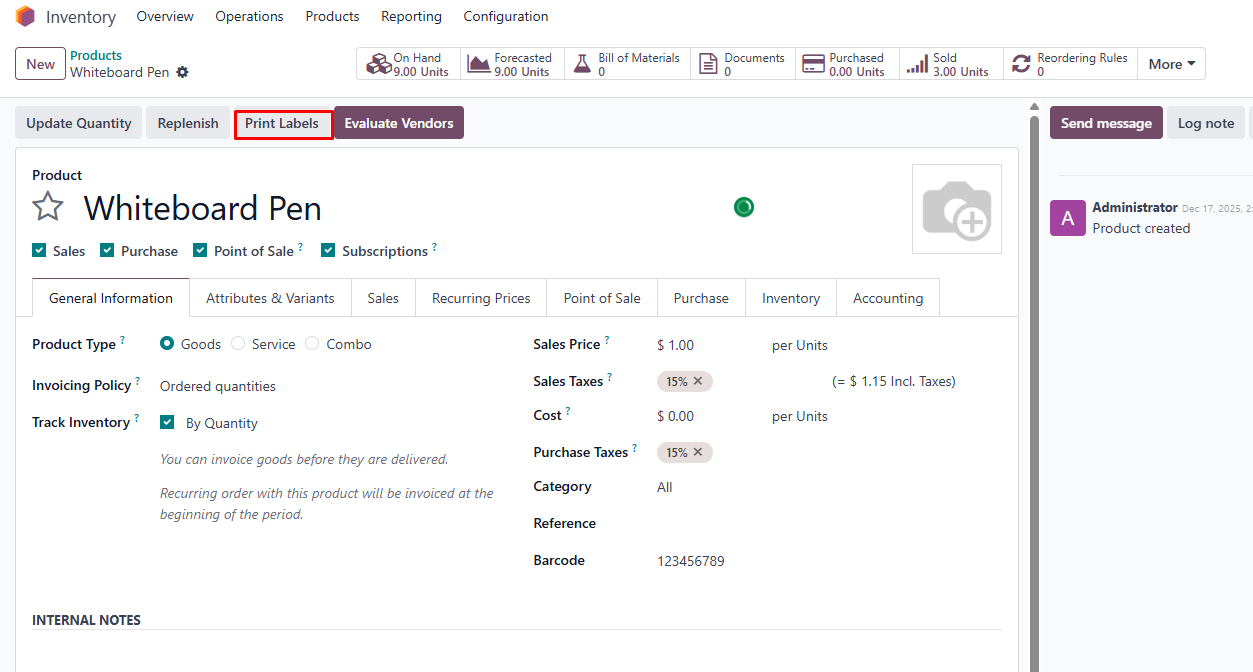
* Click the Print label button
* Select Labels
How Print Label Works (Step-by-Step)
Step 1: Select Product(s)
* Open a single product OR Select multiple products from product list view
Step 2: Click Print Label
* Click Print → Labels
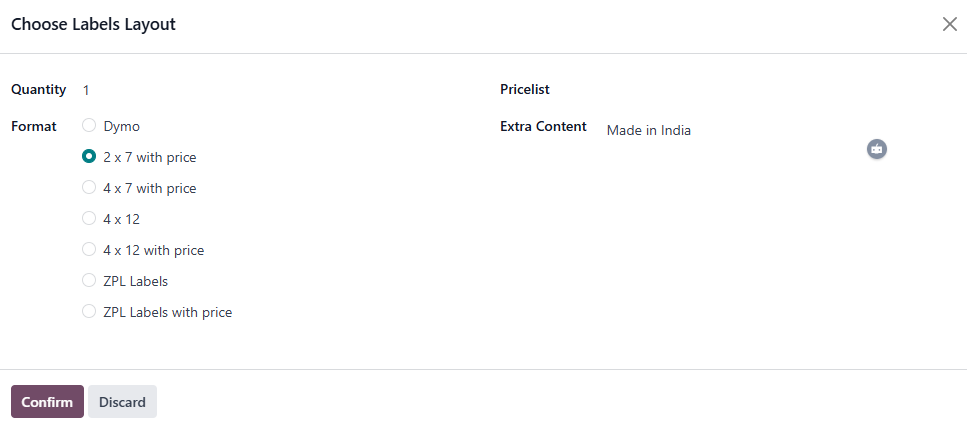
* Label wizard opens
Step 3: Configure Label Options
In the label wizard, configure:
Format
* Dymo
* 2 x 7 with price
* 4 x 7 with price
* 4 x 12
* 4 x 12 with price
* ZPL Labels
* ZPL Labels with priceQuantity
*Quantity refers to the number of labels that should be printed for a product.PriceList
* Enable if requiredEntra content
Step 4: Generate PDF
* Click confirm button
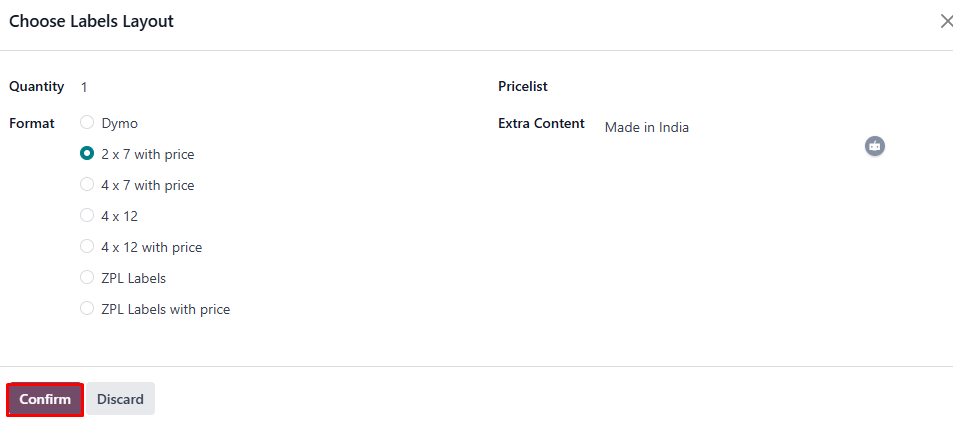
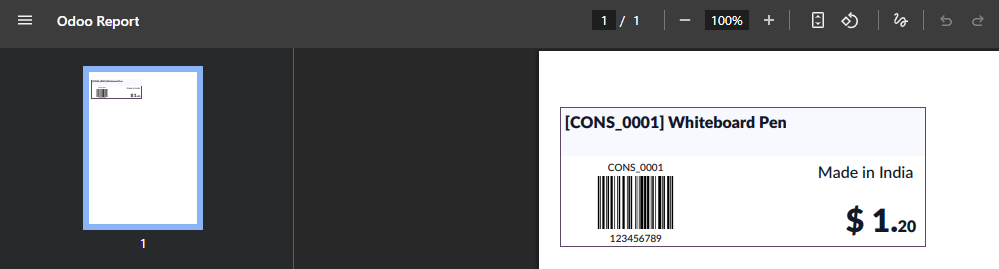
* Odoo generates a PDF label sheet
* PDF is ready for download or direct printing
Common Use Cases
* New product onboarding
* Bulk inventory labeling
* Re-labeling after price changes
* Barcode standardization
Business Benefits
* Faster product identification
* Reduced warehouse errors
* Improved inventory accuracy
* Better traceability
Conclusion
The Print Label feature in Odoo 18 Enterprise simplifies product identification and inventory management. With just a few clicks, businesses can generate professional labels that integrate seamlessly with barcode-based workflows.